1. What is the Transform Component?
Every GameObject in Unity has a Transform component. It controls the object's:
- Position: Where the object is located in the world.
- Rotation: How the object is oriented.
- Scale: How large or small the object is.
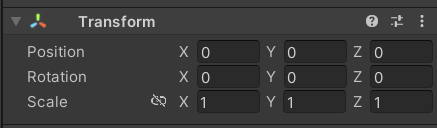
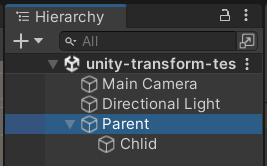
It also manages the hierarchy, defining parent-child relationships between objects.
2. Key Properties of Transform
Position
transform.position:- The position of the object in the world (global space).
- Example:
transform.position = new Vector3(0, 5, 0);
transform.localPosition:- The position of the object relative to its parent (local space).
- Example: If a child object’s
localPositionis(0, 2, 0), it is 2 units above its parent.
Rotation
transform.rotation:- The rotation of the object in the world (global space) as a quaternion.
- Example:
transform.rotation = Quaternion.Euler(0, 90, 0);
transform.localRotation:- The rotation of the object relative to its parent (local space).
Scale
transform.localScale:- The size of the object relative to its original size.
- Example:
transform.localScale = new Vector3(2, 2, 2);(doubles the size).
Key Responsibilities of Transform
-
Movement and Transformation:
transform.positionControls the GameObject's position in world space.transform.localPositionControls the GameObject's position relative to its parent.transform.rotationHandles the GameObject's orientation in world space.transform.localScaleAdjusts the GameObject's size.
-
Hierarchy Management:
transform.parentRefers to the parent Transform of the GameObject in the hierarchy.transform.GetChild(index)Allows you to access specific child objects.transform.childCountProvides the number of children a GameObject has.transform.SetParent()Lets you dynamically set or change the parent of a GameObject at runtime.
-
Traversal of the Hierarchy:
- You can navigate the GameObject hierarchy using
transform:- Move up using
transform.parent. - Move down using methods like
transform.GetChild(index). - Loop through children using
forloops withtransform.childCount.
- Move up using
- You can navigate the GameObject hierarchy using
Why Use Transform for Hierarchy Access?
In Unity, parent-child relationships are critical for organizing and structuring objects. The Transform component simplifies working with these relationships by:
- Giving direct access to the parent object.
- Enabling easy traversal to child objects.
- Maintaining a logical connection between objects, such as relaying collision events or managing groups of objects.
Examples of Using Transform Beyond Movement
1. Accessing a Parent Object
void Start()
{
    // Access the parent object
    Transform parentTransform = transform.parent;
    if (parentTransform != null)
    {
        Debug.Log("Parent Name: " + parentTransform.name);
    }
}
2. Accessing a Specific Child
void Start()
{
    // Access the first child
    if (transform.childCount > 0)
    {
        Transform firstChild = transform.GetChild(0);
        Debug.Log("First Child Name: " + firstChild.name);
    }
}
3. Changing Parent Dynamically
void Start()
{
    // Set a new parent for the current object
    Transform newParent = GameObject.Find("NewParent").transform;
    transform.SetParent(newParent);
}
4. Looping Through Children
void Start()
{
    // Loop through all children
    for (int i = 0; i < transform.childCount; i++)
    {
        Transform child = transform.GetChild(i);
        Debug.Log("Child Name: " + child.name);
    }
}
Benefits of Using Transform in This Way
- Hierarchy Awareness: It allows objects to be aware of their position in the scene hierarchy.
- Dynamic Behavior: You can dynamically reparent objects, move them, or access relatives.
- Efficiency: By leveraging the hierarchy, you can minimize repetitive code and manage relationships more effectively.
3. Key Methods of Transform
Movement
Translate(): Moves the object by a certain amount.transform.Translate(Vector3.forward * Time.deltaTime);
Rotation
Rotate(): Rotates the object around an axis.transform.Rotate(Vector3.up * 90);
Look At
LookAt(): Rotates the object to face a target.transform.LookAt(target.position);
Parent-Child Hierarchy
transform.SetParent(): Sets the parent of the object.transform.SetParent(newParentTransform);
4. Hierarchy Management
The Transform component is the backbone of Unity's parent-child system. Key concepts include:
Parent-Child Relationships
- When you parent one GameObject to another:
- The child moves, rotates, and scales relative to the parent.
- The parent's
Transformaffects the child.
Accessing Relationships
transform.parent: Get the parent object.transform.GetChild(index): Access a child object by index.transform.childCount: Get the number of children.
Dynamic Parenting
-
You can dynamically reassign parents at runtime:
transform.SetParent(newParentTransform);
5. Local vs. Global Space
Understanding local and global space is critical for using Transform effectively:
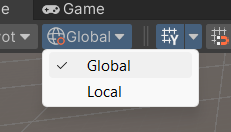
- Global Space: World coordinates (independent of hierarchy).
- Local Space: Relative to the object's parent.
Example:
- Moving an object in global space:
transform.position += Vector3.up; - Moving an object in local space:
transform.Translate(Vector3.up, Space.Self);
6. Common Transform Tasks
Move an Object
void Update()
{
    transform.Translate(Vector3.forward * Time.deltaTime); // Move forward every frame
}
Rotate an Object
void Update()
{
    transform.Rotate(Vector3.up * 50 * Time.deltaTime); // Rotate 50 degrees per second
}
Face Another Object
void Update()
{
    transform.LookAt(target.position); // Rotate to face the target
}
Change Object Size
void Start()
{
    transform.localScale = new Vector3(2, 2, 2); // Double the size
}
Reparent an Object
void Start()
{
    transform.SetParent(newParentTransform); // Change the object's parent
}
8. Common Beginner Mistakes
-
Forgetting Local vs. Global Space:
- Example: Using
transform.Translate(Vector3.forward)when you meanSpace.Self.
- Example: Using
-
No Rigidbody for Physics Movement:
- If moving objects interact with physics, use a
RigidbodyandRigidbody.MovePositioninstead oftransform.Translate.
- If moving objects interact with physics, use a
-
Not Resetting Transform Values:
- When parenting objects, their local position and rotation may change unexpectedly. Reset these values to
(0, 0, 0)if needed:- Right-click the
Transformcomponent in the Inspector and select "Reset."
- Right-click the
- When parenting objects, their local position and rotation may change unexpectedly. Reset these values to
-
Modifying
Transformof Rigidbody Objects:- Always move Rigidbody objects with Rigidbody methods to avoid breaking physics calculations.
9. Advanced Topics to Explore Later
-
Quaternions for Rotation:
- Learn how to use Unity's quaternion system for precise rotation handling.
-
Transform Hierarchy Optimization:
- Avoid deep hierarchies to maintain good performance in complex scenes.
-
Animation and Transform:
- Understand how animations interact with
Transformvalues and override them.
- Understand how animations interact with