Renderer
Class in UnityEngine | Inherits from: Component | Implemented in: UnityEngine.CoreModule
Description
The Renderer is a core component in Unity responsible for rendering (drawing) objects onto the screen. It determines an object's appearance based on its materials, textures, lighting, and other visual properties. Renderers are crucial for displaying 3D objects (e.g., spheres, cubes, or custom meshes) and 2D objects (e.g., sprites).
Key Features
-
Purpose:
The Renderer component manages the visual representation of a GameObject. It defines how the object interacts with lights, shadows, and other visual effects.1. Material
Renderers use materials to define the object's color, texture, and appearance. Each material is linked to a shader that controls how the object interacts with light and textures.
useful properties and methods:
Properties
renderer.materialGets or sets the material.// Accessing and modifying the Renderer component Renderer renderer = GetComponent<Renderer>(); Material mat = renderer.material; // Gets or sets the materialrenderer.sharedMaterialGets or sets the material shared by all instances.Renderer renderer = GetComponent<Renderer>(); Material sharedMat = renderer.sharedMaterial; // Gets or sets shared materialcolor (Material)Gets or sets the main color of the material.Material mat = GetComponent<Renderer>().material; mat.color = Color.red; // Sets the material's color to redmainTexture (Material)Gets or sets the main texture of the material.Material mat = GetComponent<Renderer>().material; mat.mainTexture = someTexture; // Sets the main texturemainTexture (Material)Gets or sets the shader of the material.Material mat = GetComponent<Renderer>().material; mat.shader = Shader.Find("Standard"); // Sets the shader to StandardHasProperty (Material)Checks whether the material has a given property.Material mat = GetComponent<Renderer>().material; bool hasColor = mat.HasProperty("_Color"); // Returns true if '_Color' existsMethods
SetTexture (Material)Sets a texture for a specific texture property of the material.Material mat = GetComponent<Renderer>().material; mat.SetTexture("_MainTex", someTexture); // Sets the main textureSetColor (Material)Sets the color for a specific color property of the material.Material mat = GetComponent<Renderer>().material; mat.SetColor("_Color", Color.green); // Sets a custom colorSetFloat (Material)Sets a floating-point value for a shader property.Material mat = GetComponent<Renderer>().material; mat.SetFloat("_Glossiness", 0.5f); // Sets glossinessSetInt (Material)Sets an integer value for a shader property.Material mat = GetComponent<Renderer>().material; mat.SetInt("_SomeIntProperty", 2); // Sets an integer propertyGetTexture (Material)Gets the texture assigned to a specific texture property of the material.Material mat = GetComponent<Renderer>().material; Texture tex = mat.GetTexture("_MainTex"); // Gets the main textureGetColor (Material)Gets the color assigned to a specific color property of the material.Material mat = GetComponent<Renderer>().material; Color color = mat.GetColor("_Color"); // Gets the color propertyGetFloat (Material)Gets a floating-point value assigned to a specific shader property.Material mat = GetComponent<Renderer>().material; float glossiness = mat.GetFloat("_Glossiness"); // Gets glossiness valueCopyPropertiesFromMaterial (Material)Copies the properties from another material to this one (except the shader).Material mat1 = GetComponent<Renderer>().material; Material mat2 = anotherMaterial; mat1.CopyPropertiesFromMaterial(mat2); // Copies properties from mat2 to mat1SetTextureOffset (Material)Sets the offset for a texture property (shifts the texture).Material mat = GetComponent<Renderer>().material; mat.SetTextureOffset("_MainTex", new Vector2(0.1f, 0.1f)); // Shifts the textureSetTextureScale (Material)Sets the scaling for a texture property.Material mat = GetComponent<Renderer>().material; mat.SetTextureScale("_MainTex", new Vector2(2.0f, 2.0f)); // Scales the texture
2. Shadows
Unity uses shadows to create depth and realism in 3D environments. You can control whether an object casts shadows, receives shadows, or both. This is done via properties in the Renderer component of the GameObject.
Key Properties for Shadows
Shadow Casting Mode
Renderer.shadowCastingModeControls whether the object casts shadows and how it does so.Options (from
UnityEngine.Rendering.ShadowCastingMode):OnThe object casts shadows normally.
OffThe object does not cast shadows.
TwoSidedThe object casts shadows on both sides of its surface.
ShadowsOnlyThe object does not render itself but still casts shadows.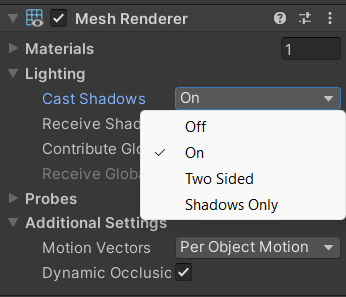
Example
Enabling shadow casting toonusing scriptRenderer renderer = GetComponent<Renderer>(); renderer.shadowCastingMode = UnityEngine.Rendering.ShadowCastingMode.On; // Enable shadow casting
Receive Shadows
Renderer.receiveShadowsDetermines whether the object receives shadows from other objects.Options
trueThe object receives shadows.
falseThe object does not receive shadows.
trueThe object receives shadows (in this case the police car 👮🚓).
Sample Code:Renderer renderer = GetComponent<Renderer>(); renderer.receiveShadows = true; // Enable receiving shadows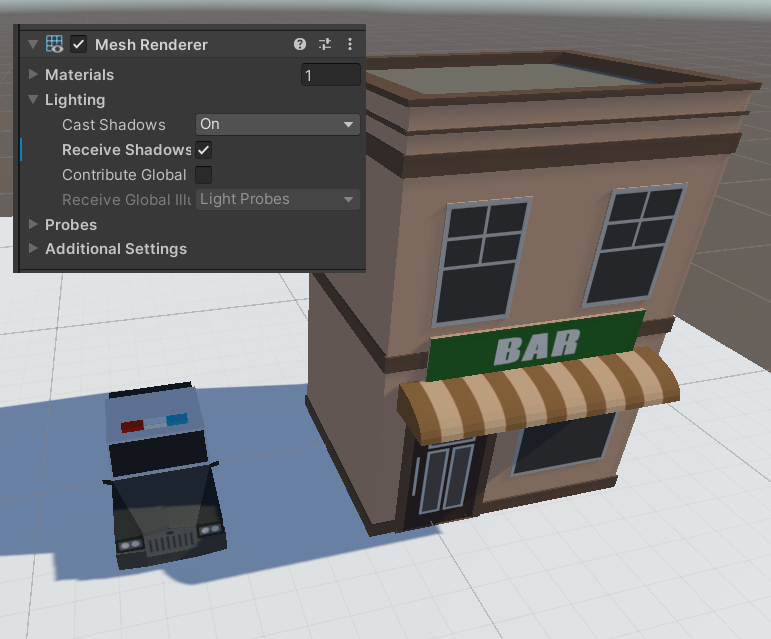
falseThe object does not receive shadows (in this case the police car 👮🚓).
Sampe CodeRenderer renderer = GetComponent<Renderer>(); renderer.receiveShadows = false; // Disable shadows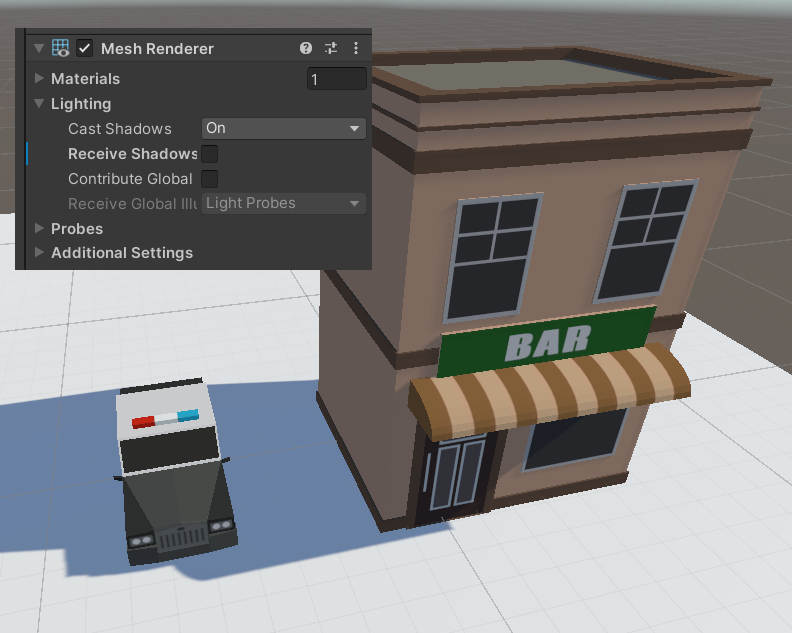
When to Use Shadow Properties
- Performance Optimization
- Disable shadow casting (
ShadowCastingMode.Off) for objects that don’t need shadows (e.g., background or small decorative items). - Disable receiving shadows for objects where shadows are not critical.
- Disable shadow casting (
- Special Effects
- Use
ShadowsOnlyfor invisible objects that need to cast shadows for unique lighting effects. - Use
TwoSidedfor thin objects like planes where shadows should appear on both sides.
- Use
Related Components
-
Ligth
- Shadows also depend on lights in the scene. Ensure the light source has shadows enabled
Light.shadowTypeDetermines whether a light casts shadows- Options
Hard Shadows,Soft Shadows, orNo Shadows.
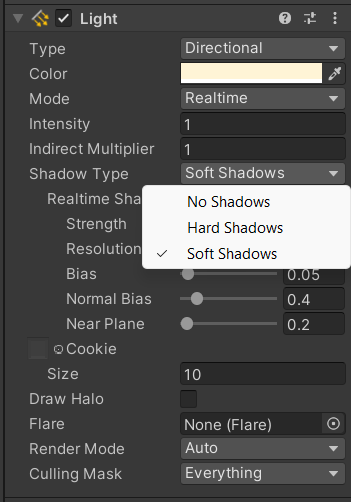
- Shadows also depend on lights in the scene. Ensure the light source has shadows enabled
-
Quality Settings
- The quality settings in Unity (Edit → Project Settings → Quality) determine global shadow behavior, such as shadow resolution, distance, and cascades.
-
Shader Settings
- The shader used by the material must support shadows. Some shaders (e.g.,
Unlit) do not interact with shadows.
- The shader used by the material must support shadows. Some shaders (e.g.,
Common Methods for Shadows
Renderer.shadowCastingModeSets how the object casts shadows.Renderer renderer = GetComponent<Renderer>(); renderer.shadowCastingMode = UnityEngine.Rendering.ShadowCastingMode.On; // Cast shadowsRenderer.receiveShadowsSets whether the object receives shadows from other objects.Renderer renderer = GetComponent<Renderer>(); renderer.receiveShadows = true; // Enable receiving shadowsLight.shadowStrengthControls the opacity of the shadows cast by the light. A value between0(no shadows) and1(fully opaque shadows).Light light = GetComponent<Light>(); light.shadowStrength = 0.5f; // Semi-transparent shadowsLight.shadowBiasSets the distance between the object and its shadow. Adjusting this can fix issues like "shadow acne" (unwanted shadow artifacts).Light light = GetComponent<Light>(); light.shadowBias = 0.005f; // Adjust shadow bias to remove artifactsLight.shadowNormalBiasAdjusts shadow bias based on the angle between the light and the surface.Light light = GetComponent<Light>(); light.shadowNormalBias = 0.4f; // Fix self-shadowing artifactsQualitySettings.shadowDistanceSets the maximum distance from the camera where shadows are rendered.QualitySettings.shadowDistance = 50.0f; // Render shadows up to 50 units awayLight.shadowsToggles shadows for the light (None, Hard Shadows, or Soft Shadows).Light light = GetComponent<Light>(); light.shadows = LightShadows.Soft; // Enable soft shadowsRenderer.boundsReturns the bounding volume of the object, which is used for shadow calculations.Renderer renderer = GetComponent<Renderer>(); Bounds bounds = renderer.bounds; // Get object bounds for shadow adjustmentsUseful Combinations
Example 1: Toggle Shadows Dynamically
  void ToggleShadows(GameObject obj, bool enable)
  {
      Renderer renderer = obj.GetComponent<Renderer>();
      renderer.shadowCastingMode = enable ?
          UnityEngine.Rendering.ShadowCastingMode.On :
          UnityEngine.Rendering.ShadowCastingMode.Off;
      renderer.receiveShadows = enable;
  }
Example 2: Adjust Shadow Quality at Runtime
  void SetShadowQuality(float distance, LightShadows shadowType)
  {
      QualitySettings.shadowDistance = distance;
      Light mainLight = FindObjectOfType<Light>();
      if (mainLight != null)
      {
          mainLight.shadows = shadowType;
      }
  }
3. Sorting Layer and Order (For 2D Objects)
Sorting layers and order are crucial in 2D games to determine which objects appear in front of or behind others. Unity uses Sorting Layers and Sorting Order to manage the rendering order of 2D objects.
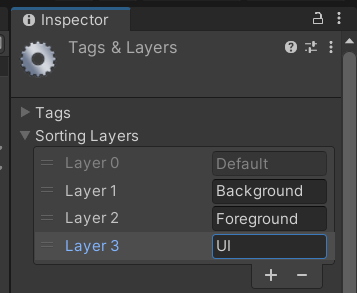
Sorting Layers
Sorting layers are like groups that define the rendering priority of objects. For example, you might have layers such as
- Background For distant scenery.
- Foreground For characters or objects closer to the camera.
- UI For game interfaces.
The objects in higher layers (with a higher priority in the "Sorting Layers" settings) are rendered on top of those in lower layers.
Sorting Order
Within a sorting layer, objects are drawn based on their Sorting Order.
-
Lower sorting order The object is rendered earlier (appears behind).
-
Higher sorting order The object is rendered later (appears on top).
-
Additional Controls:
- Order in Layer: Fine-tunes the draw order of objects within the same sorting layer. A higher number is rendered in front of a lower number.
Key Properties/Methods Summary
Component Property/Method Purpose SpriteRenderersortingLayerNameGet/set the sorting layer name. sortingLayerIDGet/set the sorting layer ID. sortingOrderGet/set the draw order within the sorting layer. CanvassortingLayerNameGet/set the sorting layer name for a Canvas. sortingOrderGet/set the draw order within the sorting layer for a Canvas. SortingLayer(Static)NameToID(string)Convert a sorting layer name to its ID. IDToName(int)Convert a sorting layer ID to its name. SortingLayer.layersAccess all available sorting layers. ParticleSystemRenderersortingLayerNameGet/set the sorting layer for particle systems. sortingOrderGet/set the draw order within the sorting layer for particles. These methods and properties are frequently used for fine control over how objects are rendered in 2D or UI-focused Unity projects.
4. Rendering Layer Mask?
The
Rendering Layer Maskis a property of theRenderercomponent in Unity. It acts as a bitmask to define which rendering layers the object belongs to. These layers can then be used by rendering features like cameras, lights, or post-processing effects to include or exclude objects. It supports 31 layers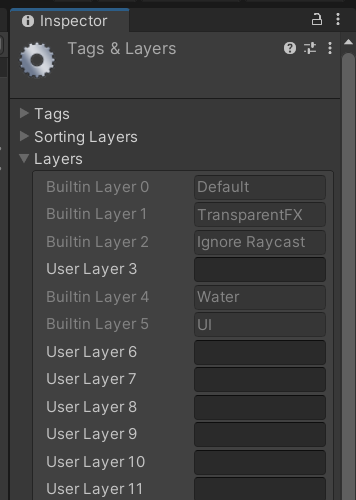
Key Concepts to Understand
-
What is a Bitmask?
- A bitmask is a way to represent multiple values using bits in an integer.
- In Unity, a bitmask is often used for layers. Each bit represents a layer, and you can combine multiple layers using bitwise operations like
<<(left shift) and|(bitwise OR).
-
How does it differ from Sorting Layers or Layers?
- Sorting Layers: Used mainly for 2D objects to determine draw order.
- Layers: Used for physics interactions, collision detection, and camera culling.
- Rendering Layers (Rendering Layer Mask): A separate system specifically for controlling rendering behavior. It doesn’t affect physics or game logic.
-
How does it work?
- The
Renderer.renderingLayerMaskdetermines which rendering layers the object belongs to. - Other components, like lights or custom shaders, can be configured to interact only with objects in specific rendering layers.
- The
Practical Applications
-
Restricting Lights to Specific Objects
- You can configure lights to only affect objects in certain rendering layers. For example, you might have a spotlight that only illuminates a character while ignoring the environment.
-
Custom Rendering Effects
- Rendering layers can be used with custom shaders or post-processing effects to apply specific effects to certain objects.
-
Optimizing Performance
- By selectively including or excluding objects from rendering calculations, you can optimize the performance of your game.
5. Additional Notes
Each of these features is built into the
Rendererclass, so you don’t need separate standalone classes likeMaterial. Instead, you access and control these properties directly through theRendererAPI.The
Rendererclass serves as a bridge that connects all the visual aspects (materials, shadows, sorting, and rendering layers) to the object being displayed. While theMaterialclass is distinct because it specifically manages shaders, colors, and textures, the rest of the features (e.g., shadows, sorting layers) are considered attributes or settings of the renderer. - Performance Optimization